Key takeaways
- Photos for anywhere: JPEG at quality 80–90.
- Photos and graphics for websites: WebP, where the destination accepts it.
- Screenshots, logos, diagrams and anything with transparency: PNG (or WebP).
- JPEG cannot store transparency; Pixcut fills transparent areas with a colour you choose.
- Converting a JPEG to PNG never restores lost quality — it only makes the file larger.
Why format matters
An image format is a set of rules for storing pixels. Some formats keep every pixel exactly; others discard detail the eye is unlikely to notice. Some support transparency; some do not. Each was designed for a different kind of picture, so the same photo can produce wildly different file sizes and quality depending on the format you choose.
How each format stores an image
JPEG: built for photographs
JPEG dates from the early 1990s and remains the most widely supported image format in the world. It divides the picture into small blocks and stores each block in a way that throws away fine detail, especially colour detail, which human vision is less sensitive to. The quality setting controls how aggressive that discarding is.
- Strengths: small files for photos, opens absolutely everywhere.
- Weaknesses: no transparency; sharp edges, text and flat colours develop halos and blocky noise.
PNG: exact pixels
PNG is lossless: every pixel you save is exactly the pixel you get back. It compresses by finding repeated patterns, which works brilliantly on flat areas and poorly on photographic noise.
- Strengths: perfect for screenshots, logos, line art and text; full transparency.
- Weaknesses: photos become very large — often five to ten times the size of a good JPEG.
WebP: a modern all-rounder
WebP, developed by Google, offers both lossy and lossless modes and supports transparency in both. In lossy mode it usually produces smaller files than JPEG at similar visual quality.
- Strengths: small files for photos and graphics, transparency, displayed by all current major browsers.
- Weaknesses: some older apps, email clients and upload forms still refuse it; saving WebP depends on the browser (see below).
Side-by-side comparison
| Property | JPEG | PNG | WebP |
|---|---|---|---|
| Compression | Lossy | Lossless | Lossy in Pixcut (the browser’s encoder) |
| Transparency | No | Yes | Yes |
| Best for | Photos | Graphics, text, transparency | Web images of most kinds |
| Typical photo size | Small | Very large | Smallest |
| Compatibility | Universal | Universal | Browsers yes; some apps and forms no |
| Quality slider in Pixcut | Yes | No | Yes |
Choosing by content
Photographs
Use JPEG when the file must open anywhere — email, print shops, older software. Use WebP for your own website, where it usually saves a further 20–30% compared with JPEG at similar quality. Avoid PNG for photos unless you need transparency.
Screenshots and interface images
Use PNG. Screenshots are full of sharp text and flat colour, exactly where JPEG struggles. A PNG screenshot is often smaller than a JPEG of acceptable quality.
Logos and icons
Use PNG or WebP with transparency so the logo sits cleanly on any background. Pixcut does not export SVG; if you have a vector logo, keep the SVG for your website and use PNG where a raster image is required.
Product cut-outs
Keep a transparent PNG or WebP as your master. When a marketplace requires a white background, export a JPEG copy and let Pixcut fill the transparent areas with white. The product photo guide covers this workflow.
Transparency: the most common trap
If an image has a transparent background, saving it as JPEG forces every transparent pixel to become a solid colour. Many tools turn it black. Pixcut fills those areas with the JPEG background colour in the Format tab, which is white by default, so the result is predictable. If the image will sit on a coloured page, either pick that colour or keep the file as PNG or WebP.
WebP in Pixcut: when it is available
Pixcut saves images with the browser’s built-in canvas encoder. Chrome, Edge and Firefox can encode WebP. Safari, at the time of checking, can display WebP but cannot encode it from a canvas — it silently produces PNG instead. Pixcut tests this when the page loads and disables the WebP option where it is unavailable, rather than giving you a PNG with a “.webp” name.
Compatibility checklist before choosing WebP
- Is it for your own website? Modern browsers display WebP, so it is a strong choice.
- Is it for a marketplace, CMS or form? Check that the upload field accepts
.webp. - Will someone open it in older software or receive it by email? JPEG is the safer choice.
- Will it be printed? Print services usually expect JPEG or TIFF; Pixcut can export JPEG.
Converting formats in Pixcut
- Add your images to the Pixcut editor.
- Open the Format tab and choose JPEG, PNG or WebP. Keep saves each image in its current format.
- For JPEG or WebP, set Quality. For JPEG, check the background colour.
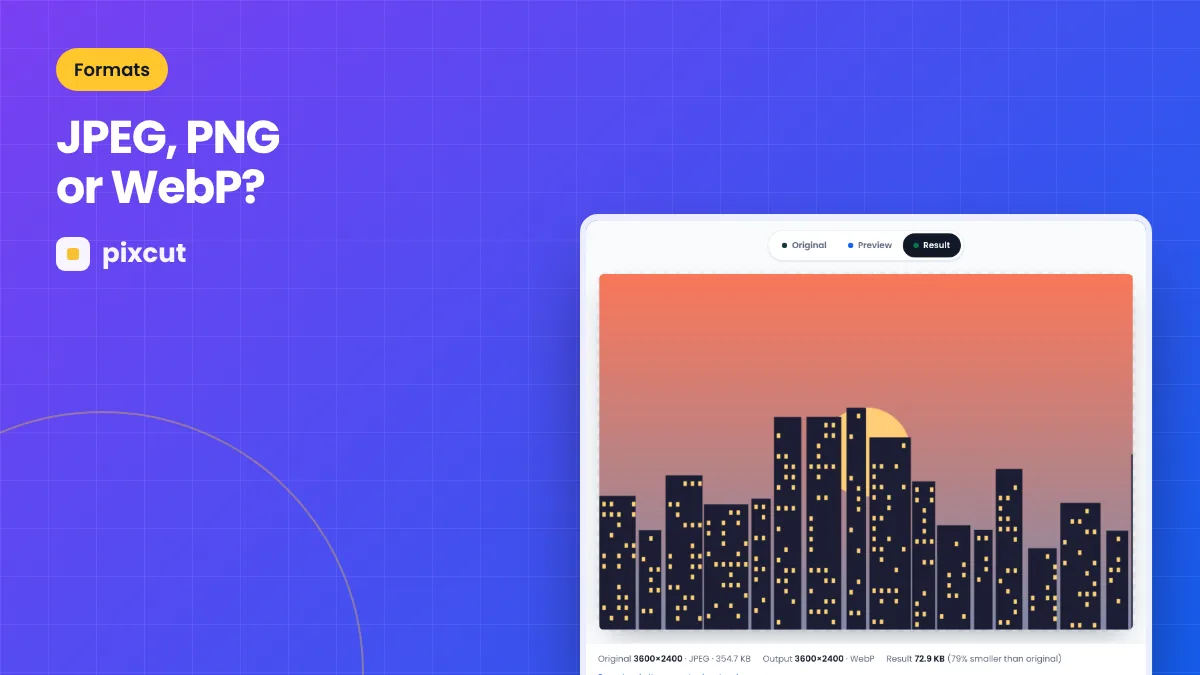
- Process, then compare sizes in the Result view, which shows the saving against the original.
The conversion guide walks through specific conversions such as PNG to JPG and WebP to JPG.
A quick decision guide
- Does the image need transparency? Yes → PNG or WebP. No → continue.
- Is it a photograph or something photo-like? Yes → JPEG or WebP. No (text, flat colour, screenshot) → PNG.
- Will it be used somewhere that might refuse WebP? Yes → JPEG (or PNG for graphics). No → WebP is usually the smallest.
- Will it be edited again later? Keep a PNG or high-quality JPEG master, and export final copies from it.
How the same image compares
File sizes depend heavily on content, but the pattern for a typical 1600-pixel-wide photograph usually looks like this:
| Export | Relative size | Visible quality |
|---|---|---|
| PNG | Largest — often several times the JPEG | Exact pixels |
| JPEG, quality 90 | Medium | Visually identical at normal size |
| JPEG, quality 80 | Smaller | Very close; check skies and edges |
| WebP, quality 80 | Usually smallest | Very close; often slightly cleaner than JPEG at the same size |
For a screenshot of a web page, the pattern often reverses: PNG may be smaller than a JPEG that keeps text readable. Always compare in the Result view, which shows the real size of each export.
Glossary
- Lossy: discards some information to make files smaller (JPEG, lossy WebP).
- Lossless: keeps every pixel exactly (PNG, lossless WebP).
- Alpha channel: the part of an image that stores transparency.
- Artefacts: visible flaws caused by lossy compression, such as blocks and halos.
- Encoder: the software that writes an image file; Pixcut uses the browser’s own.
Best practices
- Keep a lossless or high-quality master. Edit and archive in PNG or high-quality JPEG, and export smaller copies for each use.
- Match format to content, not habit. Many people save everything as PNG or everything as JPEG; choosing per image saves space and improves quality.
- Check where the image is going. A format that is perfect for your website may be rejected by a marketplace or email client.
- Do not chain lossy conversions. JPG → WebP → JPG loses detail at every step. Always convert from the original.
- Compare real results. Use the Result view to compare file size and appearance instead of relying on rules alone.
- Think about transparency early. Decide whether an image needs a transparent background before choosing JPEG, because JPEG cannot keep it.
Common questions
Is WebP better quality than JPEG?
At the same file size, WebP usually looks slightly better; at the same visual quality, it is usually smaller. The difference depends on the image, so compare both in the Result view.
Does converting JPEG to PNG improve quality?
No. Detail that JPEG discarded is gone. Converting to PNG only stores the current, already-compressed pixels losslessly, which makes the file larger.
Which format keeps transparency?
PNG and WebP. JPEG does not.
Why is my PNG so large?
Because it is probably a photo. PNG is lossless and photographs contain too much noise to compress well. Use JPEG or WebP for photos.
Which format is best for printing?
Print services usually accept high-quality JPEG. Export at quality 92–95 at the full resolution the print size needs.
Does WebP support animation?
The format does, but Pixcut processes only the first frame of animated files.
Remember: always convert from the best original you have. Each lossy save discards a little more, and no later step can bring it back.
Next, read how to balance quality and file size.
Summary
There is no single best image format, only the best format for a particular picture and destination. JPEG remains the universal choice for photographs, PNG is the right home for graphics, text and transparency, and WebP offers the smallest files for websites wherever it is accepted. Choose by content and destination, keep a good master, and convert from that master whenever a new use comes along. Pixcut makes the comparison easy by showing the real size of each export in the Result view.
Try it now — your images stay in your browser.
Open the Pixcut editor