Key takeaways
- EXIF metadata can include GPS coordinates, date and time, camera or phone model and settings.
- Some platforms strip metadata on upload, but email attachments, file-sharing links and many websites do not.
- Pixcut re-encodes images through a canvas, and the exported files do not contain EXIF data.
- Orientation is applied to the pixels before export, so photos still appear upright.
- Colour profiles are not kept either — fine for the web, but check colour-critical work in a colour-managed editor.
What is EXIF metadata?
EXIF (Exchangeable Image File Format) is a standard way for cameras and phones to store information inside an image file, alongside the pixels. It is invisible when you look at the photo, but any program that reads the file can see it. Typical EXIF fields include:
- Location: GPS latitude, longitude and sometimes altitude, if location tagging was on.
- Date and time the photo was taken.
- Device: camera or phone make and model, sometimes lens and serial details.
- Settings: exposure, aperture, ISO, focal length, flash.
- Orientation: how the image should be rotated for display.
- Software used to edit the file.
Other metadata standards such as XMP and IPTC can add captions, keywords, author names and copyright notices.
Why metadata matters for privacy
Location data is the main concern. A photo taken at home with location enabled can contain coordinates precise enough to identify the building. Sharing that file can reveal where you live, work or regularly spend time. Date and device information can also be more revealing than people expect, especially when many photos are shared over time.
Some social networks remove metadata when you upload, but many routes do not: email attachments, messaging apps that send “original quality” files, cloud-storage links, forums, marketplaces and your own website may all pass the file through unchanged.
How Pixcut removes metadata
Pixcut does not edit metadata fields one by one. Instead, it decodes each image into pixels, draws those pixels onto an HTML canvas and encodes a brand-new file. The canvas only holds pixels, so the browser’s encoder writes a file without the original EXIF block. In practice this means exported JPEG, PNG and WebP files from Pixcut do not carry the camera’s EXIF data, including GPS coordinates.
What happens to orientation
Phones often store a photo sideways and use an orientation tag to tell viewers how to rotate it. Pixcut asks the browser to apply that orientation while decoding, so the rotation is baked into the pixels and the exported photo appears upright even though the tag is gone. Current browsers support this; very old ones may not.
What happens to colour profiles
Embedded colour profiles are not copied. Browsers generally work in the standard sRGB space for canvas output, which is normal for web images. Photographers working in wide-gamut colour spaces for print should check colour-critical images in a colour-managed editor instead.
Step by step: share a photo without metadata
- Open the Pixcut editor and add the photos you want to share.
- Leave the crop and size as they are, or make them smaller for faster sharing.
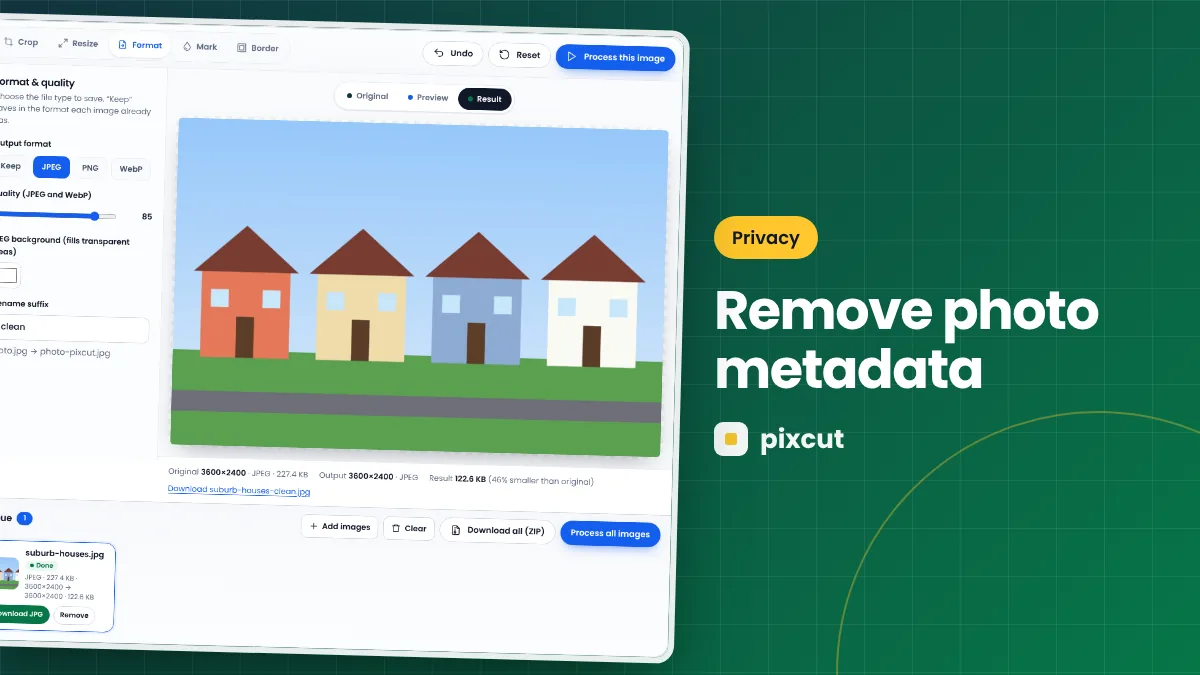
- In the Format tab, choose Keep or JPEG, quality 90 for photos.
- Set a suffix such as
-cleanso you can tell the copies apart. - Press Process all images, then download the files or the ZIP.
- Share the downloaded
-cleancopies, not the originals.
Everything stays on your device. The photos are processed inside your browser tab and are never uploaded to Pixcut, which matters when the reason for removing metadata is privacy.
How to check that metadata is gone
- Windows: right-click the file → Properties → Details. GPS and camera fields should be empty.
- macOS: open the file in Preview → Tools → Show Inspector. The GPS and EXIF tabs should be missing or empty.
- Phones: many gallery apps show an info panel with location; it should not show a place for the cleaned copy.
Check the original first so you can see the difference.
Preventing location data in the first place
- On most phones you can turn off location tagging in the camera app’s settings.
- Some phones offer an option to remove location when sharing an individual photo.
- Remember that turning off tagging only affects new photos; existing photos keep their data.
When you should keep metadata
Metadata is not always a problem. Photographers use it to track settings, archives rely on dates, and copyright information in IPTC fields helps prove authorship. Removing it from shared copies while keeping your originals untouched gives you the best of both: Pixcut never modifies the files you add, so your originals keep all their information.
| Situation | Remove metadata? |
|---|---|
| Selling items online with photos taken at home | Yes |
| Sending photos to people you do not know well | Yes |
| Publishing personal photos on a website or blog | Usually yes |
| Archiving your own photo library | No — keep originals intact |
| Submitting to a photo contest that requires EXIF | No |
Common places where metadata leaks
| Sharing route | Metadata usually removed? | Advice |
|---|---|---|
| Major social feeds | Often removed on upload | Still clean files you post publicly from home |
| Email attachments | No | Clean before attaching |
| “Original quality” in messaging apps | Often not | Clean before sending |
| Cloud-storage share links | No | Clean before uploading |
| Marketplaces and classified ads | Varies | Clean photos taken at home |
| Your own website or blog | No (unless your CMS strips it) | Clean before uploading |
Platforms change their handling over time, so if privacy matters, clean the files yourself rather than relying on the destination.
A worked example: selling furniture online
You photograph a chair in your living room to sell it. The phone had location tagging on.
- Add the five photos to Pixcut.
- Crop 4:3, resize to width 1600, JPEG at 88, suffix
-listing. - Process and download.
- Check one file’s properties: no GPS, no camera model.
- Upload the
-listingcopies to the marketplace.
Buyers see a clean, well-sized photo; your home location stays private.
Metadata glossary
- EXIF: technical data written by cameras and phones, including GPS.
- IPTC: descriptive data such as captions, keywords and copyright notices.
- XMP: an extensible metadata format used by many editing programs.
- Geotag: the GPS coordinates saved with a photo.
- ICC profile: colour information that describes how colours should be displayed.
Best practices
- Clean by default when sharing personal photos. Make re-exporting part of your routine for anything taken at home or at places you visit regularly.
- Keep originals private. Store original files with metadata in your own library, and share only cleaned copies.
- Check the first file. After processing, inspect one output to confirm the metadata is gone before sharing the rest.
- Mind what is in the picture. Removing metadata does not hide house numbers, street signs or documents visible in the photo itself.
- Turn off tagging when you do not need it. Disabling location in the camera app prevents the problem for future photos.
Common questions
Does Pixcut remove GPS location from photos?
Yes. Exported files are newly encoded from canvas pixels and do not include the original EXIF data, which is where GPS coordinates are stored.
Can I remove metadata but keep the image exactly the same?
Export as PNG to keep pixels exactly, or JPEG at high quality (90+) for a much smaller file that looks the same. A JPEG re-save always discards a tiny amount of detail.
Can I choose which fields to keep?
No. Pixcut removes all EXIF data in exported files. Use a dedicated metadata editor if you need selective control.
Do screenshots have metadata?
Usually much less than camera photos, but they can still contain dates and software information. Re-exporting removes it.
Does removing metadata change how the photo looks?
No. Orientation is applied to the pixels, so the photo appears exactly as before, apart from any resizing or compression you chose.
Is this the same as anonymising a photo?
Not entirely. Metadata removal hides hidden data, but faces, signs and other visible details remain in the picture.
Related: preparing images for websites.
Quick reference
- What is removed: EXIF data including GPS location, date and device
- What stays: the visible picture, with orientation applied
- Best format: JPEG at quality 90 for photos
- Naming: a suffix such as -clean to tell copies apart
- Verify: check one output’s properties before sharing
- Prevent: turn off location tagging in the camera app
- Originals: keep them private in your own library; Pixcut never changes the files you add, so all their information stays intact
Summary
Photos can carry hidden details such as location, time and device. Re-exporting them with Pixcut produces clean copies without that EXIF data, while orientation is baked into the pixels so they still look right. Share the cleaned copies, keep your originals private, check the first file to be sure, and remember that metadata removal does not hide what is visible inside the picture itself. Turning off location tagging prevents the problem for future photos.
Try it now — your images stay in your browser.
Open the Pixcut editor