Key takeaways
- Pixcut opens only real JPEG, PNG and WebP data; HEIC, AVIF, GIF, RAW, TIFF, BMP and SVG are refused with a reason.
- Memory is the usual limit on large photos — reduce output size, split batches or use a desktop.
- WebP export is disabled in browsers that cannot encode it, such as Safari.
- JPEG cannot keep transparency; choose PNG or WebP instead.
- An error on one file never stops the rest of a batch.
How to read errors in Pixcut
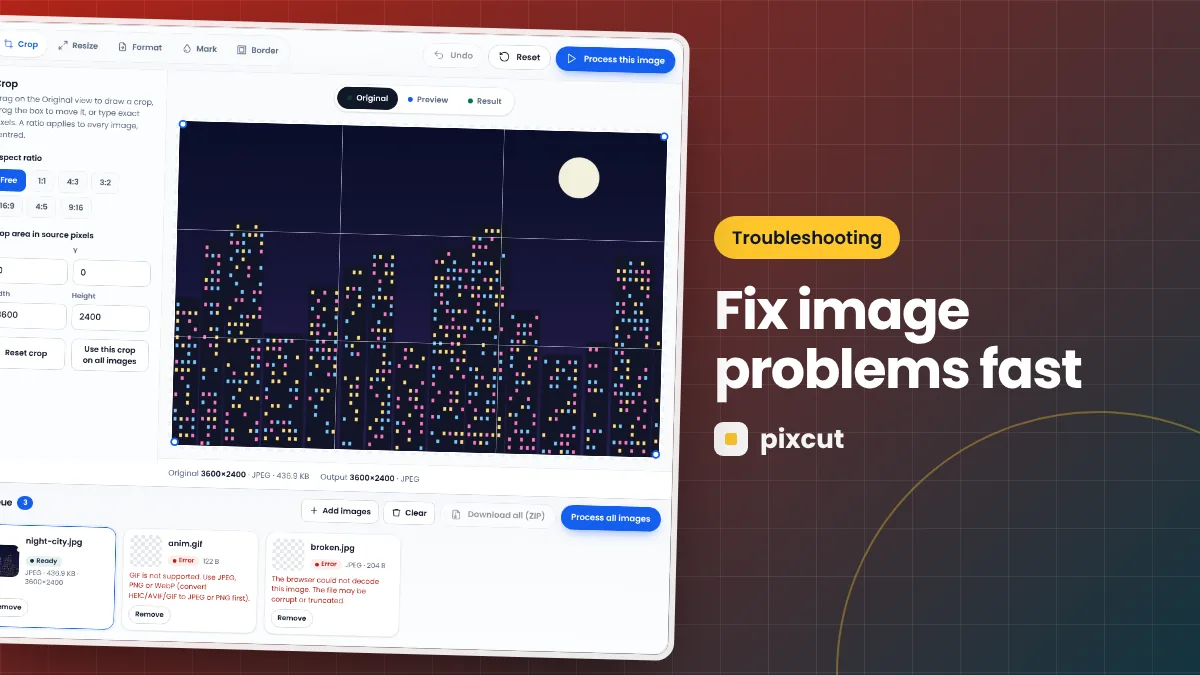
Every image card in the queue shows its own status and, when something goes wrong, a plain-language message. Read that message first — it usually names the exact cause, such as an unsupported format, a file that is too large or an image the browser could not decode. Warnings (shown in orange) are informational; the file still works.
“Not supported” when adding a file
Pixcut checks the first bytes of every file, not just its name, so it knows what a file really contains. It opens JPEG, PNG and WebP. It refuses:
- HEIC/HEIF — the default photo format on many iPhones. On iOS you can choose Settings → Camera → Formats → Most Compatible for future photos, or export existing ones as JPEG; many sharing options convert them automatically.
- AVIF and GIF — export them as PNG or JPEG in another app first.
- RAW camera files, TIFF, BMP and SVG — convert them in your photo or design software.
If the message says the file “does not contain valid JPEG, PNG or WebP data”, it may be damaged or renamed from another format. Re-export it from its source and try again.
Extension warnings
If a file named photo.png actually contains JPEG data, Pixcut treats it as JPEG and shows a warning. This is common with files downloaded from websites that serve a different format than the name suggests.
Large images fail or the tab reloads
A decoded image takes about four bytes per pixel in memory. A 24-megapixel photo needs roughly 96 MB, and processing briefly needs extra working copies. Phones and tablets have much tighter memory limits than desktops, and some browsers cap how large a single canvas can be.
- Process fewer large images at a time.
- Choose a smaller output size — exporting at 2000 pixels wide uses far less memory than full resolution.
- Close other heavy tabs and apps.
- Use a desktop browser for photos above about 40 megapixels.
Pixcut refuses files over 100 MB and images or outputs over 100 megapixels so that one huge file cannot freeze your browser. If the browser itself returns no data during encoding, Pixcut marks that file as an error and continues with the rest.
The WebP option is greyed out
Pixcut uses the browser’s built-in canvas encoder. Browsers that can display WebP but not encode it — Safari behaves this way at the time of writing — would silently produce a PNG. Pixcut tests this when the page loads and disables WebP instead. To export WebP, use Chrome, Edge or Firefox; otherwise choose JPEG or PNG.
Transparent areas turned white or black
JPEG cannot store transparency. Pixcut fills transparent pixels with the JPEG background colour (white by default). Export as PNG or WebP to keep transparency, or pick a background colour that matches where the image will be used. See choosing a format.
Downloads do not start
- Some browsers ask before a page saves several files. Look for a prompt near the address bar and allow downloads for this site.
- Use Download all (ZIP) to save one file instead of many.
- On iPhone and iPad, downloads go to the Files app (Downloads folder) by default.
- Private-browsing modes and strict download settings can block saving; try a normal window.
The result looks blurry or blocky
| Symptom | Likely cause | Fix |
|---|---|---|
| Soft, blurry image | Output larger than the source, or a small original | Keep “Allow enlarging” off; start from a larger original |
| Blocky skies, halos around edges | JPEG/WebP quality too low | Raise quality to 85–90 |
| Fuzzy text in screenshots | Saved as JPEG | Export as PNG |
| Banding in gradients | Strong compression | Higher quality, or PNG for graphics |
The compression guide explains how to choose quality values.
Cards say “Outdated”
You changed settings after processing. The old download still works, but it no longer matches the current settings. Press Process all images again. More in the batch guide.
A photo appears rotated
Phones often store orientation as metadata rather than rotating the pixels. Pixcut asks the browser to apply that orientation while decoding, which current browsers support. If a photo still appears sideways in an older browser, update the browser, or rotate the photo in your gallery app and export it again.
The page looks old or unstyled
- Press Ctrl + F5 (or Cmd + Shift + R on a Mac) to reload without the cache.
- If you opened the site from a ZIP file, extract the ZIP first; files inside a ZIP cannot load each other.
The editor does not respond at all
- Make sure JavaScript is enabled; the editor cannot run without it.
- Update to a current version of Chrome, Edge, Firefox or Safari.
- Disable extensions that modify web pages, then reload.
Quick diagnosis table
| What you see | Most likely cause | First thing to try |
|---|---|---|
| Error immediately after adding | Unsupported or damaged file | Convert to JPEG/PNG and re-add |
| Error during processing | Not enough memory for the output size | Smaller output size; fewer files at once |
| Tab reloads by itself | Browser ran out of memory | Split the batch; use a desktop |
| WebP button disabled | Browser cannot encode WebP | Use Chrome, Edge or Firefox, or pick JPEG |
| White box behind logo | Saved as JPEG | Export PNG or WebP |
| Nothing downloads | Download blocked or permission prompt | Allow downloads; use the ZIP |
| Page looks unstyled | Old cache or opened inside a ZIP | Ctrl + F5; extract the ZIP first |
Why browser tools have limits desktop apps do not
Desktop editors can use most of your computer’s memory and specialised image libraries. A web page runs inside the browser’s safety rules: it gets a limited share of memory, can only use the image formats the browser understands, and must save files through the browser’s download system. Those rules are also what make browser tools safe and private — the page cannot read your other files, and nothing needs installing. Pixcut works within these limits and tells you clearly when one is reached instead of failing silently.
Device-specific tips
iPhone and iPad
- Photos may be HEIC; choose JPEG when sharing or set the camera to “Most Compatible”.
- Safari cannot export WebP; JPEG and PNG work normally.
- Downloads appear in the Files app.
Android
- Most phones save JPEG by default, which Pixcut opens directly.
- Chrome supports WebP export.
- Large batches are easier on devices with more memory; process in smaller groups if the tab reloads.
Windows and macOS
- Desktop browsers handle the largest images and longest batches.
- If downloads go to an unexpected folder, check the browser’s download settings.
Best practices
- Update your browser. Most decoding, orientation and canvas issues disappear in current versions.
- Start small when testing. If something fails, try a single small image with default settings to see whether the problem is the file, the settings or the device.
- Change one setting at a time. When results look wrong, undo changes one by one to find the cause.
- Keep large jobs on desktop. Phones are fine for quick edits; long batches of large photos are more reliable on a computer.
- Download as you go. For very long sessions, download finished results periodically so nothing is lost if the tab closes.
Common questions
Is there a maximum number of files?
No fixed number. The practical limit is device memory; on phones, process 20–50 photos at a time.
Why does the same image work on my laptop but not my phone?
Phones allow web pages much less memory and smaller canvases. Reduce the output size or use the laptop for very large files.
Can I recover results after closing the tab?
No. Results exist only in the tab’s memory and are never uploaded. Download before closing.
Do I need an internet connection?
Only to load the page. Processing itself runs on your device.
Does Pixcut work offline?
Once the page has loaded, processing does not need a connection. Loading the page in the first place does.
Why does processing slow down in a long batch?
Devices may throttle when warm, and memory fills with finished results. Download and clear the queue between parts.
Still stuck? The contact page explains what details make a problem report useful.
Summary
Most problems with browser-based image editing fall into a handful of groups: unsupported formats, memory limits on large images, browser differences in WebP support, transparency lost in JPEG, and blocked downloads. Pixcut reports each of these clearly on the affected image card rather than failing silently, and one failed file never stops the rest of a batch. Read the message, apply the matching fix from this guide, and process again.
Try it now — your images stay in your browser.
Open the Pixcut editor